By clicking “Accept All Cookies”, you agree to the storing of cookies on your device to enhance site navigation, analyze site usage and assist in our marketing efforts.
By clicking “Accept All Cookies”, you agree to the storing of cookies on your device to enhance site navigation, analyze site usage and assist in our marketing efforts.
End-to-End Data Pipeline on GCP with Airflow: A Social Media Case Study
Blog Part 1: Social Media Data Pipeline – GCP Setup and Modeling
Introduction
In this blog series, I will walk you through a real-world case study I personally worked on, where we built an end-to-end social media data pipeline using Google Cloud Platform (GCP) and Apache Airflow. This pipeline helps analyze user engagement, trends, and behavior from a simulated social media platform. The goal is to help beginners and data engineers understand each step with implementation logic.
Project Overview
We simulated a full-fledged social media backend with datasets and tables to store users, posts, comments, likes, hashtags, follows, logins, and media files (photos/videos). Our focus was on both creating the data model and orchestrating and analyzing it efficiently using BigQuery and Airflow.
Key Entities:
Users and Logins
Posts, Photos, Videos
Comments and Comment Likes
Hashtags and Hashtag Follows
Post Tags
Bookmarks
Follows
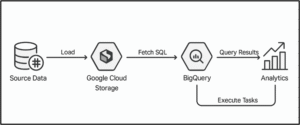
Architecture Diagram
Step-by-Step Implementation : Setting Up Your GCP Environment
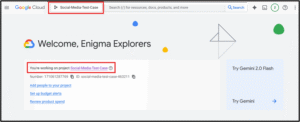
Click on the project dropdown (top bar) → New Project → Fill details → Create
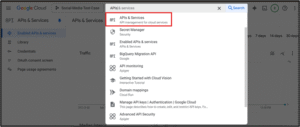
2. Enable Required APIs
Navigate to "APIs & Services" → "Library"
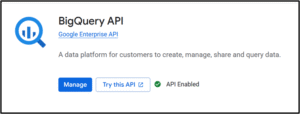
Enable the following:
BigQuery API
Cloud Composer API
Cloud Storage API
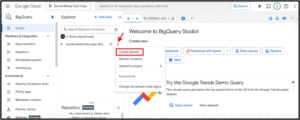
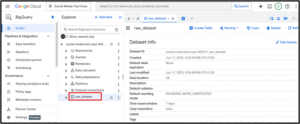
3. Create a BigQuery Dataset
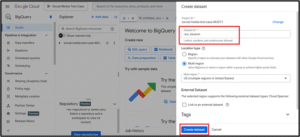
Go to BigQuery → Click your project name → "Create Dataset"
Name it raw_dataset, set location (e.g., US), and click Create
Important: After creating the dataset, you must manually create the necessary tables before running the DAG. Use the following DDL statements in the BigQuery SQL editor:
CREATE TABLE `your_project_id.raw_dataset.hashtags` ( hashtag_id INT64, hashtag_name STRING, created_at TIMESTAMP);-- Add similar DDLs for other tables like users, post, post_tags, comments, etc.
Replace your_project_id with your actual GCP project ID.
These tables are required for your DAG to run successfully without BigQuery errors.
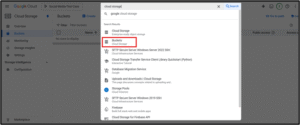
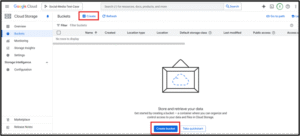
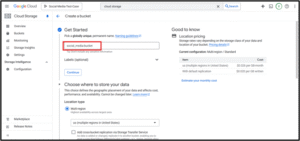
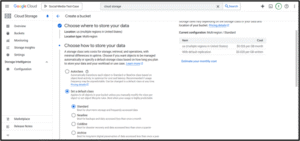
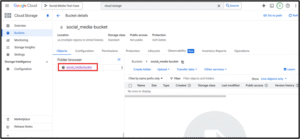
4. Create a Cloud Storage Bucket
Go to "Cloud Storage" → "Create Bucket"
Choose a global unique name, region (e.g., us-central1), and standard settings
Note: This bucket is optional and used for general-purpose data storage (e.g., CSVs for manual ingestion, logs, or exports). It is not the same as the Composer-managed bucket that holds DAG and SQL files.For Airflow (Composer) to detect your DAGs and SQL scripts, you will upload them into the bucket automatically created when you set up Cloud Composer — usually named like : gs://us-central1-your-env-name-xxxx-bucket/.
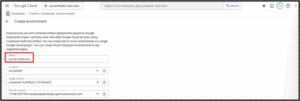
5. Create a Cloud Composer Environment (Airflow)
Go to "Cloud Composer" → "Create Environment"
Choose environment name (e.g., social-media-env), region (e.g., us-central1), and GKE + bucket settings
Wait ~20 minutes for provisioning
Stay tuned for Part 2 where we dive into DAG creation and SQL ingestion with Airflow!